 by
by 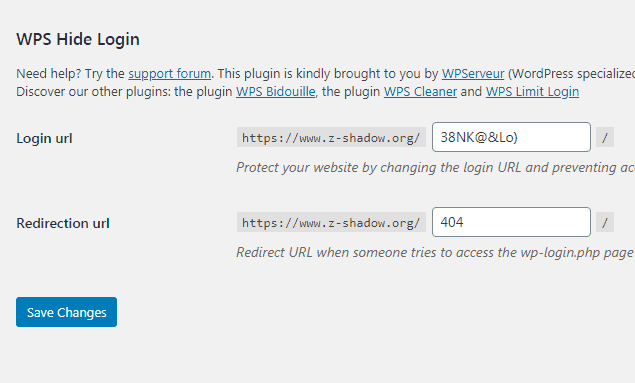
WPS Hide Login is the easiest and simple way to hide the URL of the WordPress login page. Everyone knows the default login page of a WordPress website is /wp-admin.
For example, if a website xyz.com is created on WordPress then anyone can access the admin login page of this website by typing xyz.com/wp-login.php or xyz.com/wp-admin.
In this guide, we will discuss WPS Hide login settings and the reasons to use this plugin. This guide is part of chapter 5 of our free blogging course.
Page Contents
WPS Hide Login Settings
It is the easiest WordPress plugin to set up.
1. To install this plugin, go to the plugin and then click on add new. Now, search for WPS Hide login in the search box.
2. Install and activate the plugin.
3. Open the WPS hide login settings. By default, it will look like this in the image below.
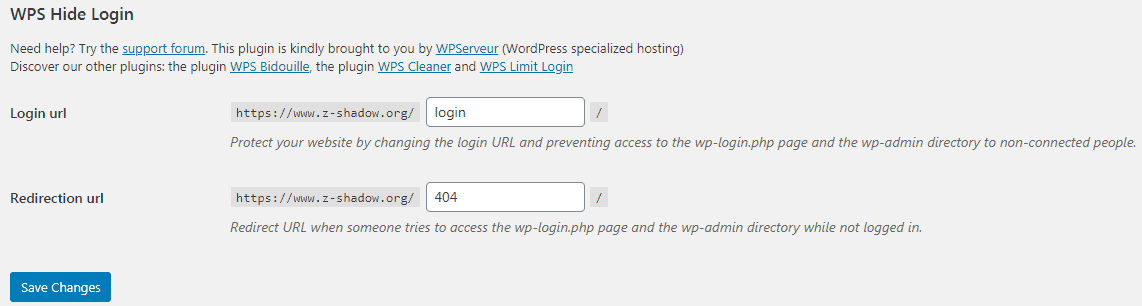
4. Now, write something else in the place of login and then click on save changes. Remember the URL that you have written for the login page to access the dashboard of your website.
Suggested Read: 6 Best Online Careers: Make Money Online
Reasons to use WPS Hide Login
- It can easily change the login URL of the WordPress website to anything that you want to use without changing the WordPress core files.
- It is easy to set up and a very lightweight plugin.
- If you don’t want that your website visitors open the login URL page of your website then you can use WPS hide login to make the login page inaccessible for them.
- If you deactivate this plugin then you can use the default login URL to open the admin login page.
Frequently Asked Questions
You can read these FAQ that may come to your mind before or after using this plugin.
Q1. Does this plugin make my website slow If I have already more than 20 plugins Installed on my website?
Ans. It is a very lightweight plugin and it will not slow down your website.
Q2. What happens if I forget the URL that I have set for my WordPress website login page?
If you don’t remember the URL that you have set for the login page then go to your web hosting cPanel and then open the file manager. You will see the plugins folder open that.
You will see the folders of all the plugins that have been installed on your website. Delete the WPS Hide login folder and now you will access your website using wp-admin.
Q3. Is there any other alternative to this plugin?
Yes, there are many alternatives to WPS Hide login but this plugin is best because it is easy to use and lightweight. This plugin does not affect your website performance and page speed.
The two best alternatives to this plugin are Hide My WP Ghost – Security Plugin and WP Hide & Security Enhancer.
Both the plugins are good. But these two plugins also provide lots of additional security features such as changing WordPress theme names, change paths in sitemap.xml to something else, disable XML-RPC, Hide REST API WP-JSON, and many more.
Q4. Can I get back to the original state after deactivating this plugin?
Deactivating this plugin will bring you back to the original state and you will be able to use the default login URL again that is /wp-admin.
Conclusion
In this guide, we have already seen the WPS Hide login settings and the benefits of using this plugin. If you don’t want the users visiting your website to open the login page then you should install this plugin and change the default login URL to something else. As of 2024, this plugin has already more than 1 million active installations.
See Also:
- How to make a WordPress website secure to avoid hacking attempts and which hosting should I choose?
- What are the different ways of earning money from blogging?
- How to get Adsense approval for my website?
- How to display ads on the WordPress website and How can I place ads where I want?